
Microsoft 365 backup is activated and configured in the Oxibox console (admin.oxibox.com). An administrator account of your tenant is required so that the Oxibox solution can access all the data to back up.
Oxibox backup for Microsoft 365 requires a Business licence. If you want to back up a personal OneDrive, use a local synchronisation and an agent on the machine instead: Backup of physical infrastructures.
The Oxibox backup agent, running in the Oxibox cloud, connects to your M365 tenant to back up the data through the Microsoft API. The data can be sent to the Oxibox cloud or to an appliance.
Data backed up
Oxibox backs up the following M365 Business data:
- Users' drives,
- Data stored in SharePoint sites (shared libraries, files shared in Teams conversations).
Some “files” are not included in this backup. This covers OneNote files and certain special types that are sometimes visible in the interfaces (such as .aspx).
Oxibox backs up the Exchange data stored in “valid” mailboxes in the Microsoft cloud. Inactive mailboxes, deleted mailboxes (recoverable or “soft-deleted”) and mailboxes stored on an on-premises Exchange server or with another host cannot be backed up by Oxibox. The data backed up is the following:
- List of users (name and e-mail address),
- The list of categories used to organise e-mails, calendars and contacts,
- Mailboxes,
- Calendars,
- Contacts.
Activation
- In the Oxibox console, open “Accounts” and click the account for which to activate the backup.
- In the “Summary” tab of the account panel, scroll down to the “Account” block.
- Click “Activate M365 backup”.
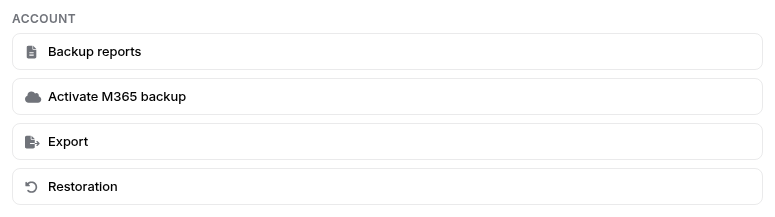
The e-mail address associated with the Oxibox account concerned then receives an e-mail requesting access authorisation.
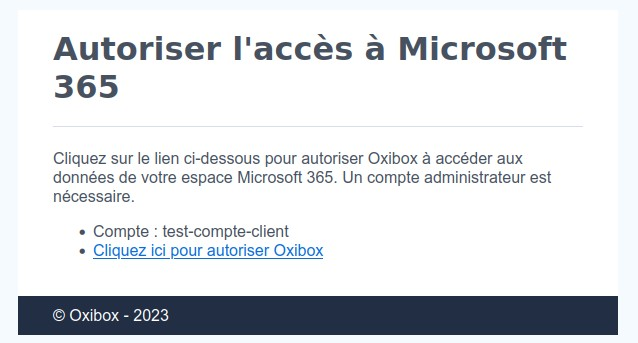
Authorising access to the data
Log in to the Microsoft 365 tenant with an administrator account. You will see the permissions required by the Oxibox application. Once you accept the application, an information page appears with a message saying that the backup is being configured.
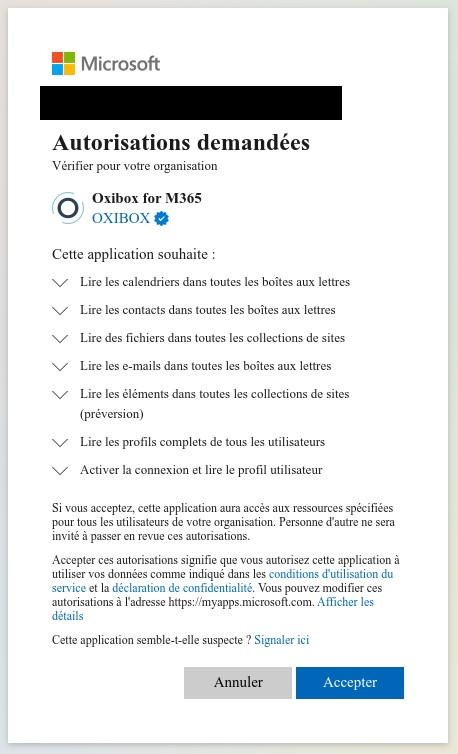
Backup configuration
Once access is authorised, the backup appears in the console as a source named “Oxibox CloudSync M365”, in the “Sources” tab of the account panel. By default, it backs up all the data in your tenant.
To see its settings, open the “Configuration” tab of the account panel and choose “Oxibox CloudSync M365”.
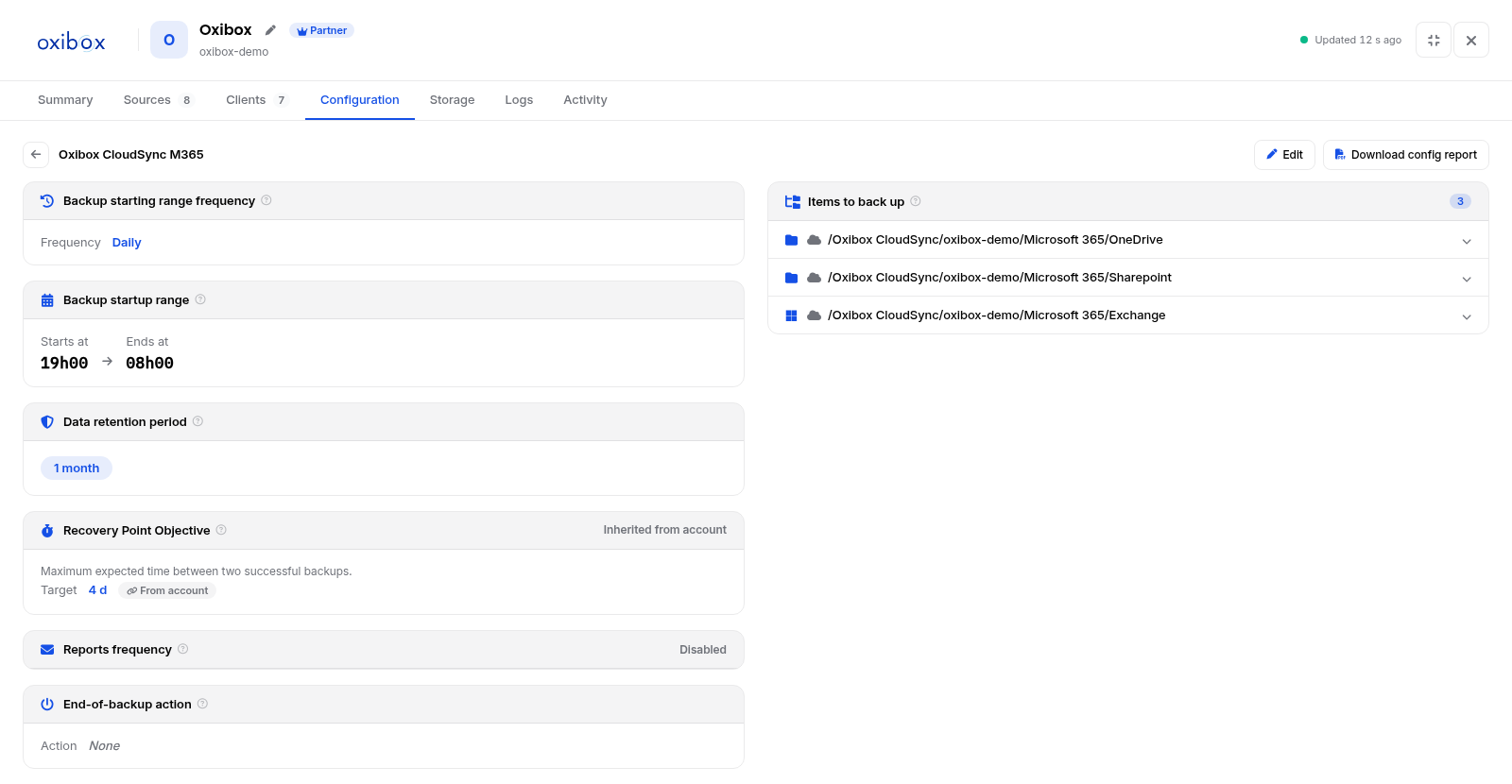
You find the same settings as for a machine:
- the backup starting range frequency and startup range;
- the data retention period;
- the Recovery Point Objective (RPO), inherited from the account by default;
- the frequency of reports sent by e-mail;
- the end-of-backup action;
- the items to back up: one item per data type,
/Oxibox CloudSync/<account ID>/Microsoft 365/OneDrive,…/Sharepointand…/Exchange.
Click “Edit” to change these settings. You can disable OneDrive, SharePoint or Exchange backup, and exclude part of the data of each type. Your data can be backed up to the Oxibox cloud or to an Oxibox appliance on your local network.
The logs of each data type are available in the “Logs” tab, as for a machine: see Customer accounts. The settings are described in detail in Configure the Oxibox backup agent.
Restore procedure
Through the Oxirescue restore console, restore all or a selection of files (OneDrive, SharePoint drive, Teams shared files), calendars, contacts and e-mails (Exchange).
- Exchange restore: e-mails, calendars and contacts are restored in a standard format (.EML, .ICS and .VCF respectively), referenced by their Microsoft ID. To access their content, re-import them into suitable software (mail client, calendar, etc.).
- SharePoint and OneDrive restore: files and folders are restored in their original format.