
The Overview is the console's home page. It summarises the state of all the accounts you manage. The “7 d”, “15 d” and “30 d” buttons change the period used by the indicators.
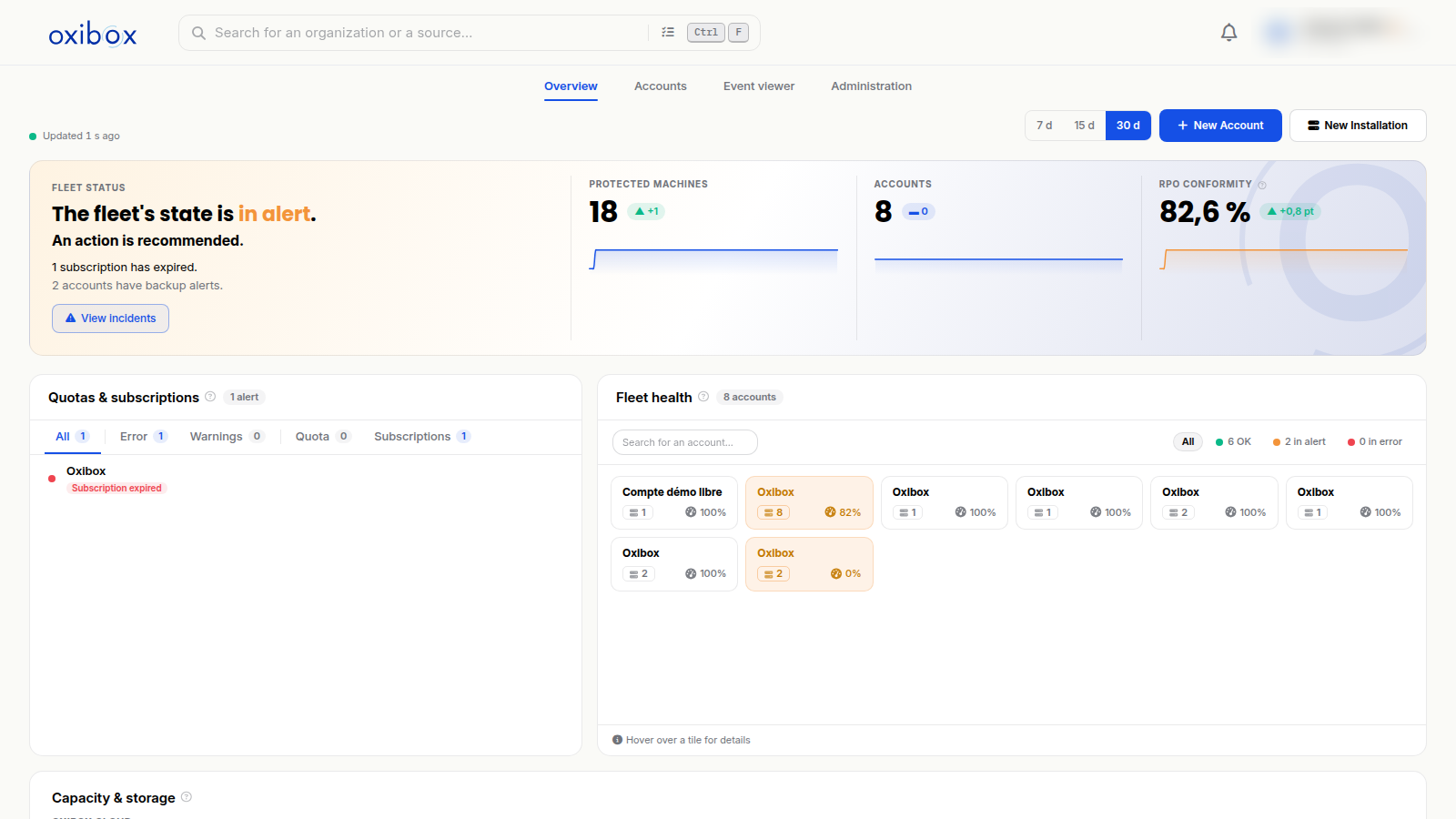
Fleet status
The banner at the top says whether the fleet is healthy or in alert, and why: for example an expired subscription or accounts whose backups have alerts. The “View incidents” button opens the account list filtered on accounts in alert or in error.
Three indicators track its evolution over the chosen period:
- Protected machines: the number of machines backed up, and how it has changed.
- Accounts: the number of customer accounts.
- RPO conformity: the share of accounts whose latest backup still meets their RPO. The RPO (Recovery Point Objective) is the maximum amount of data, measured in time, that you accept to lose in the event of an incident.
Quotas & subscriptions
This block lists the accounts that are close to or over their storage quota, and those whose subscription is about to expire or has expired. The “Error”, “Warnings”, “Quota” and “Subscriptions” filters let you sort the alerts.
Fleet health
Each account is represented by a tile showing its number of sources and its success rate. The colour reflects its status based on the result of its latest backups: OK, in alert or in error. A search field and status filters help you find an account.
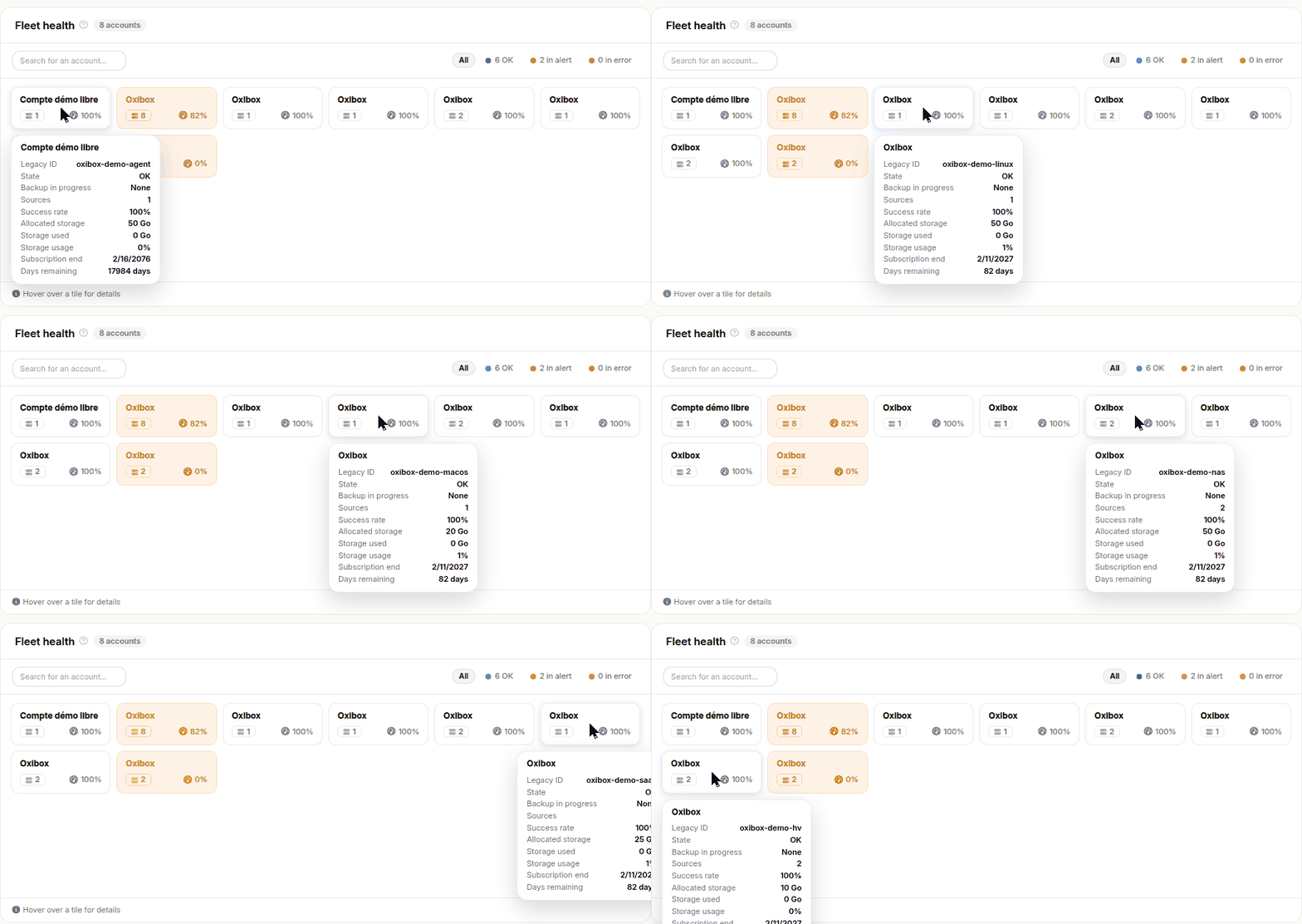
Hover over a tile to see the account details: ID, status, backup in progress, number of sources, success rate, subscription end and days remaining.
Capacity & storage
For a partner account, this block shows the usage of the pooled storage envelope:
- Envelope usage rate: the volume distributed to your customers (and to yourself) compared with the direct storage envelope available to you.
- Provisioned volume and usage: everything provisioned, direct storage and appliance offsite storage combined, then the volume actually used. Only direct storage counts against the envelope.
The “Top overages” and “Top consumers” lists point out the accounts to watch.
Create an account or add a machine
The “New Account” button opens the creation of a customer account, if your organisation has the permission to create organisations. The “New Installation” button gives access to the agent installers: see Add a machine.