
The “Administration” section of the console manages the users of your organisation: who can log in, with which role, and who has registered a two-factor authentication device.
The user list
For each user, the list shows their display name and e-mail, their roles, their status, the state of their two-factor authentication (MFA) and their creation date. The “All”, “Active”, “Pending” and “Disabled” tabs filter the list by status.
The “Add user” button creates a new user. Depending on your own role, you cannot create or manage every role (see below).
Roles
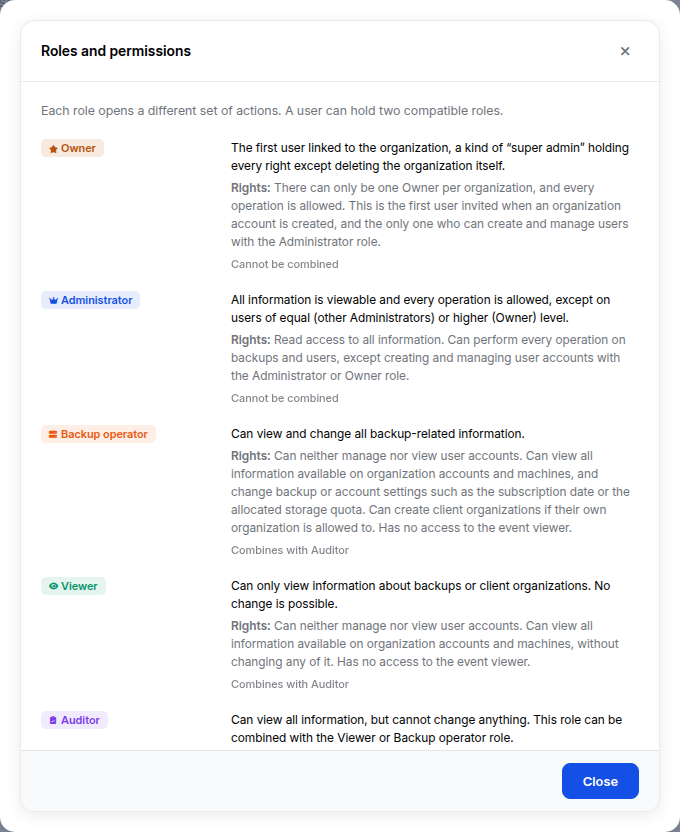
Each role opens a different set of actions. A user can hold two compatible roles. The “Roles and permissions” button in the console shows these details.
| Role | What it allows | Combination |
|---|---|---|
| Owner | Every operation except deleting the organisation. This is the first user invited when the account is created, and the only one who can create and manage Administrators. There can be only one per organisation. | Cannot be combined |
| Administrator | Read access to all information and every operation on backups and users, except on other Administrators and the Owner. | Cannot be combined |
| Backup operator | Views all information on accounts and machines, and changes backup or account settings, such as the subscription date or the allocated storage quota. Can create client organisations if their own organisation has the permission. Cannot see users or the event viewer. | Combines with Auditor |
| Viewer | Views information on accounts and machines without changing anything. Cannot see users or the event viewer. | Combines with Auditor |
| Auditor | Views everything, including users and the event viewer, without changing anything. | Combines with Backup operator or Viewer |
Best practices
- Give everyone the most restricted role that is enough for their work: Viewer for monitoring, Backup operator for day-to-day operations.
- Give the Auditor role to the people in charge of oversight: it gives access to the event viewer without any right to make changes.
- Check in the MFA column that every user has registered their two-factor authentication device; each user does so at their first login. See Manage your password and two-factor authentication.