Password management
Use the access link you received by e-mail to open the interface where you can set a new password for your Oxibox account. The new password must meet certain conditions, including a minimum length, and must not appear in a data breach known to Have I Been Pwned.
Once the new password is saved, you can use it on the interfaces that require your Oxibox credentials. The backup agents linked to the Oxibox account are not affected by this change and will keep working.
Two-factor authentication (2FA)
Two-factor authentication protects access to the Oxibox console even if your password has leaked: on top of your password, every login asks for a six-digit code generated by an authenticator app on your phone (Microsoft Authenticator, Google Authenticator, FreeOTP or similar). The code changes every 30 seconds.
Register your device at your first login
- Install an authenticator app on your phone.
- Open the link in the account creation e-mail and set your password.
- Log in to the Oxibox console with your e-mail address and this password.
- The console then asks you to register your device: scan the QR code it displays with the app, then follow the on-screen instructions.
- Keep the recovery codes the console gives you in a safe place: they let you log in if you lose your device.
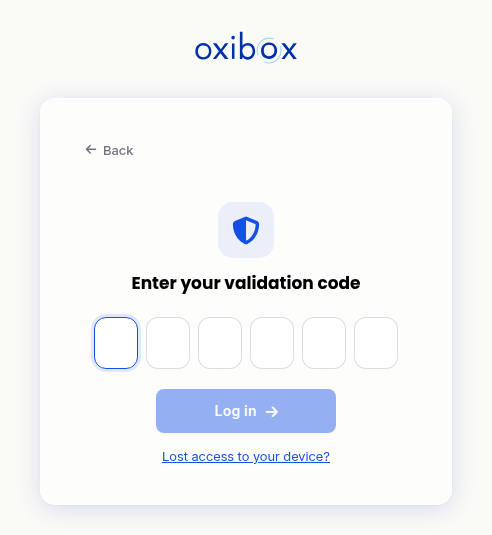
At later logins, enter the six-digit code shown by the app after your password. The login is submitted as soon as you type the sixth digit.
The registration appears in the event viewer, and the MFA column of the “Administration” section shows the two-factor authentication status of each user: see Users and roles.
Change phones or lose your device
- New phone: transfer your accounts to the new phone before you wipe the old one. Most authenticator apps offer an export or a backup.
- Code rejected: check that your phone sets its time automatically. Codes are computed from the time: a phone whose clock runs fast or slow produces rejected codes.
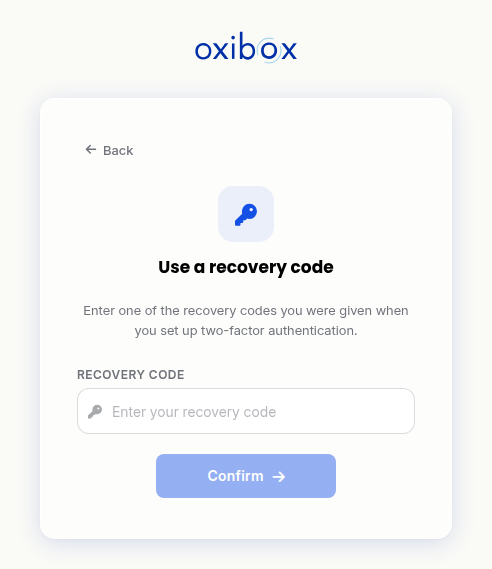
- Lost device or reset app: use one of your recovery codes. On the “Enter your validation code” screen, click “Lost access to your device?”, type the code in the “Recovery code” field, then click “Confirm”. If you have no recovery code left, contact support at support@oxibox.com.