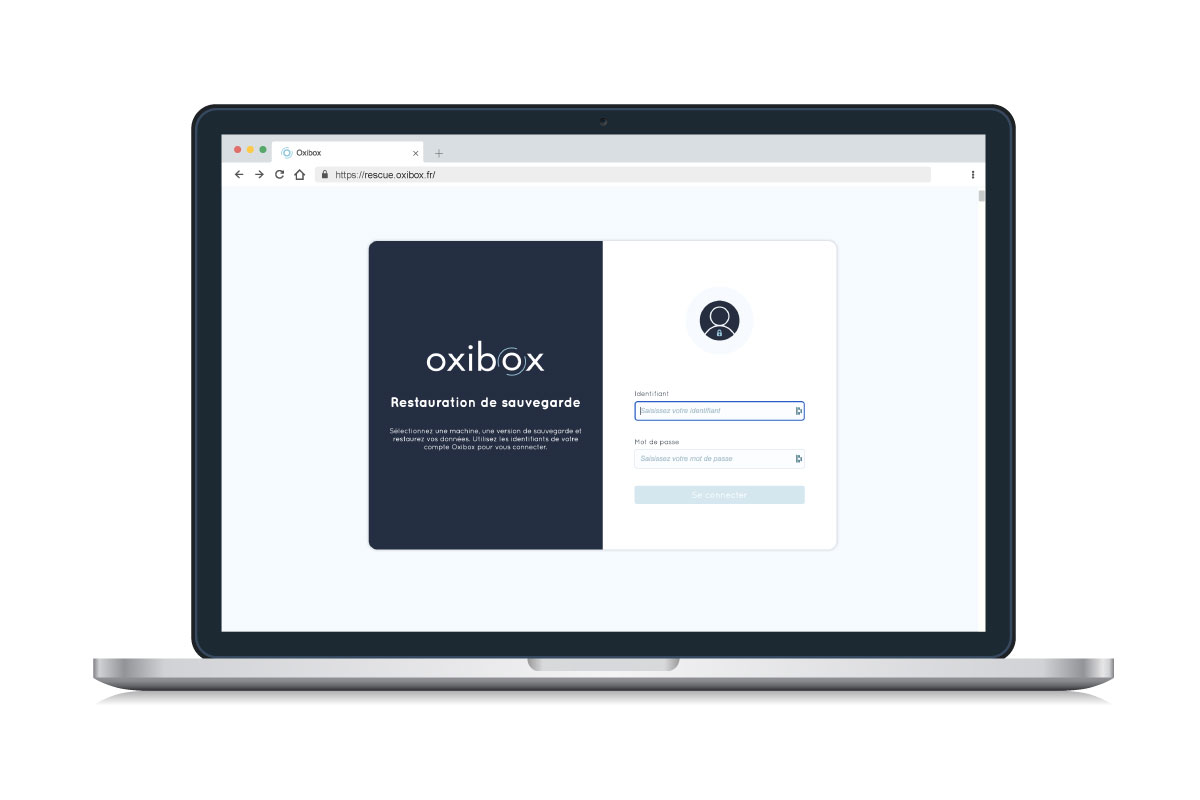
If you have an offsite backup in the cloud, you can retrieve your data online through the Oxibox restore interface. From your browser, go to rescue.oxibox.fr and log in with your account credentials.
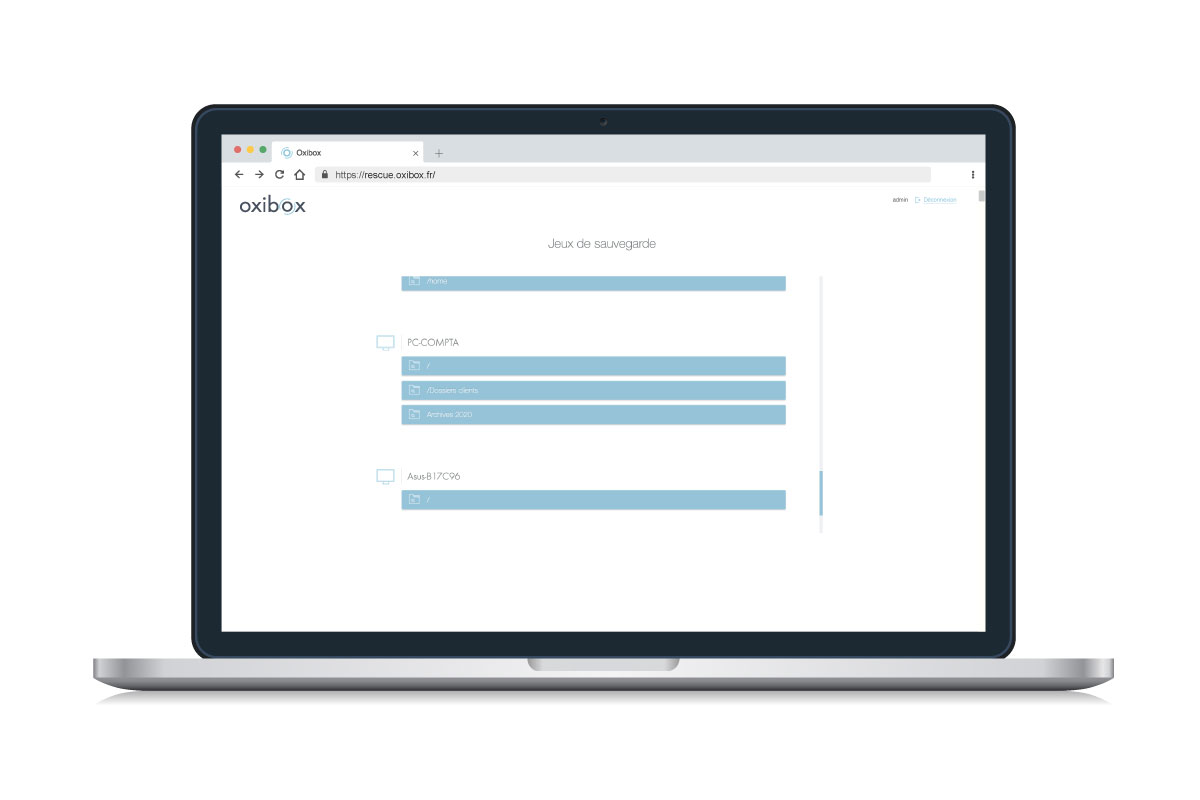
After a short wait while the repository is decrypted, the list of machines and backup sets available in your offsite storage is displayed. Select the backup set you want to retrieve.
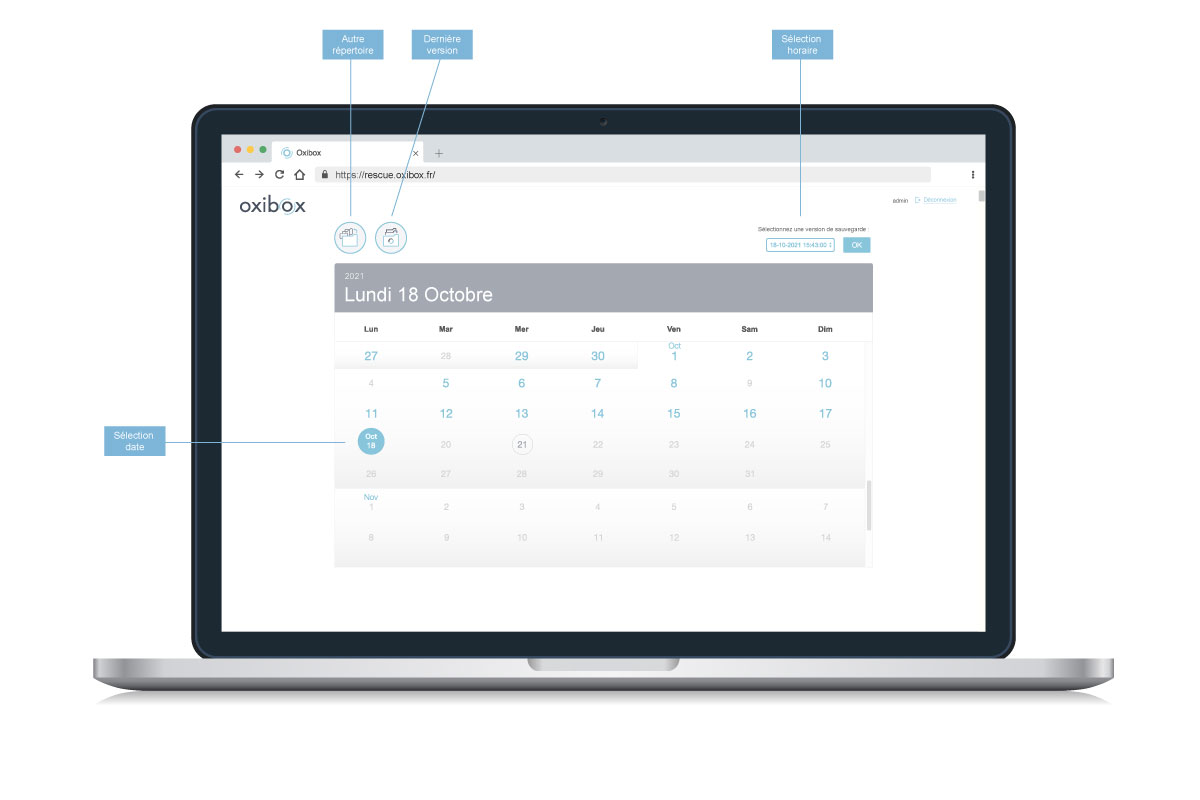
If you configured your backup with version history, a calendar with a list of the available versions is displayed. Dates in blue show that a backup is available. Select the date and time (drop-down list at the top right) of the version you want.
The “Accéder à la dernière version” (Access the latest version) button lets you open the most recent version of your data, even if the backup is still running.
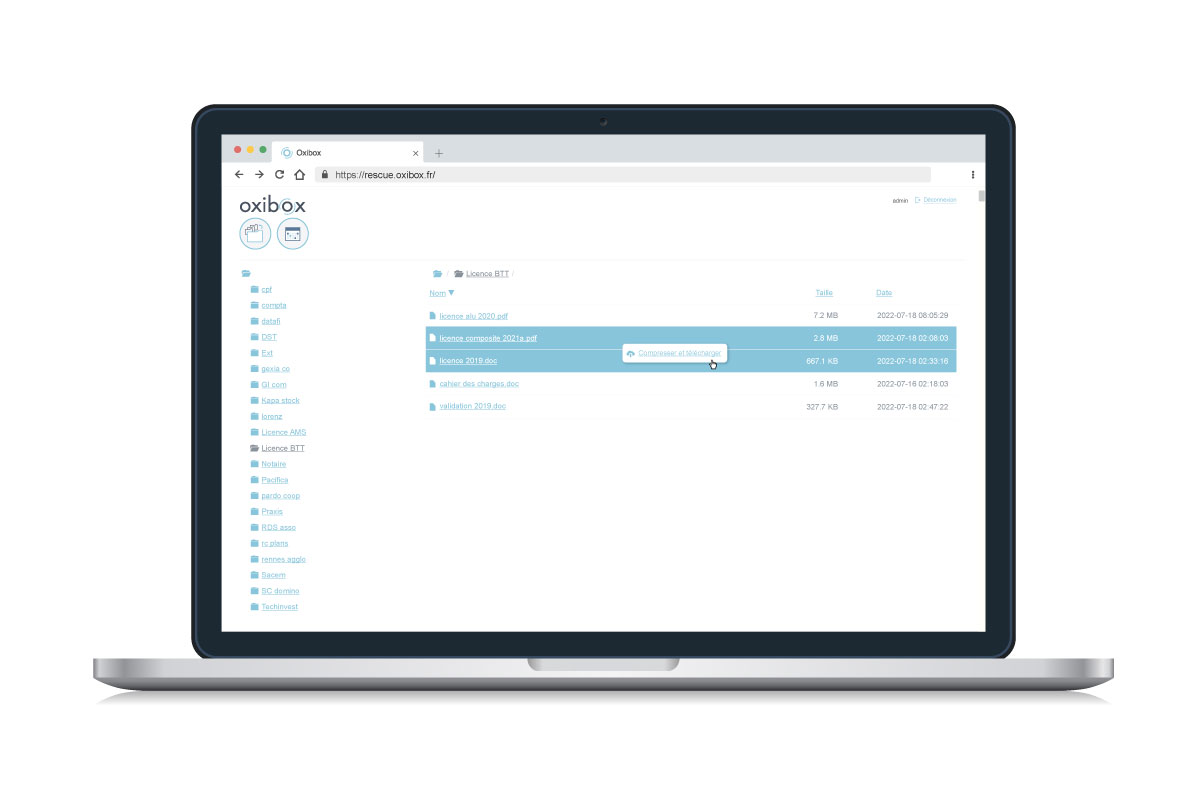
Right-click the folder or file you want to restore to download it to your computer. To download several folders or files at once, hold down the Shift or Ctrl key and select the data you want. Then right-click and choose “Compresser et télécharger” (Compress and download) to download the data to your computer.