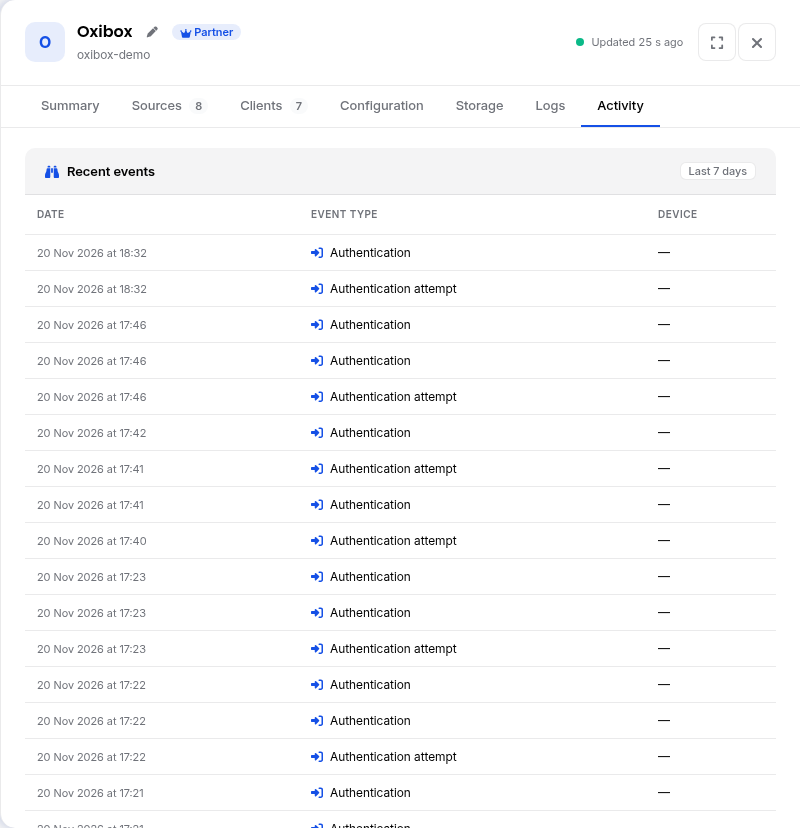
The “Accounts” section lists all the customer accounts you manage. Click a row to open the account panel on the side.
The account list
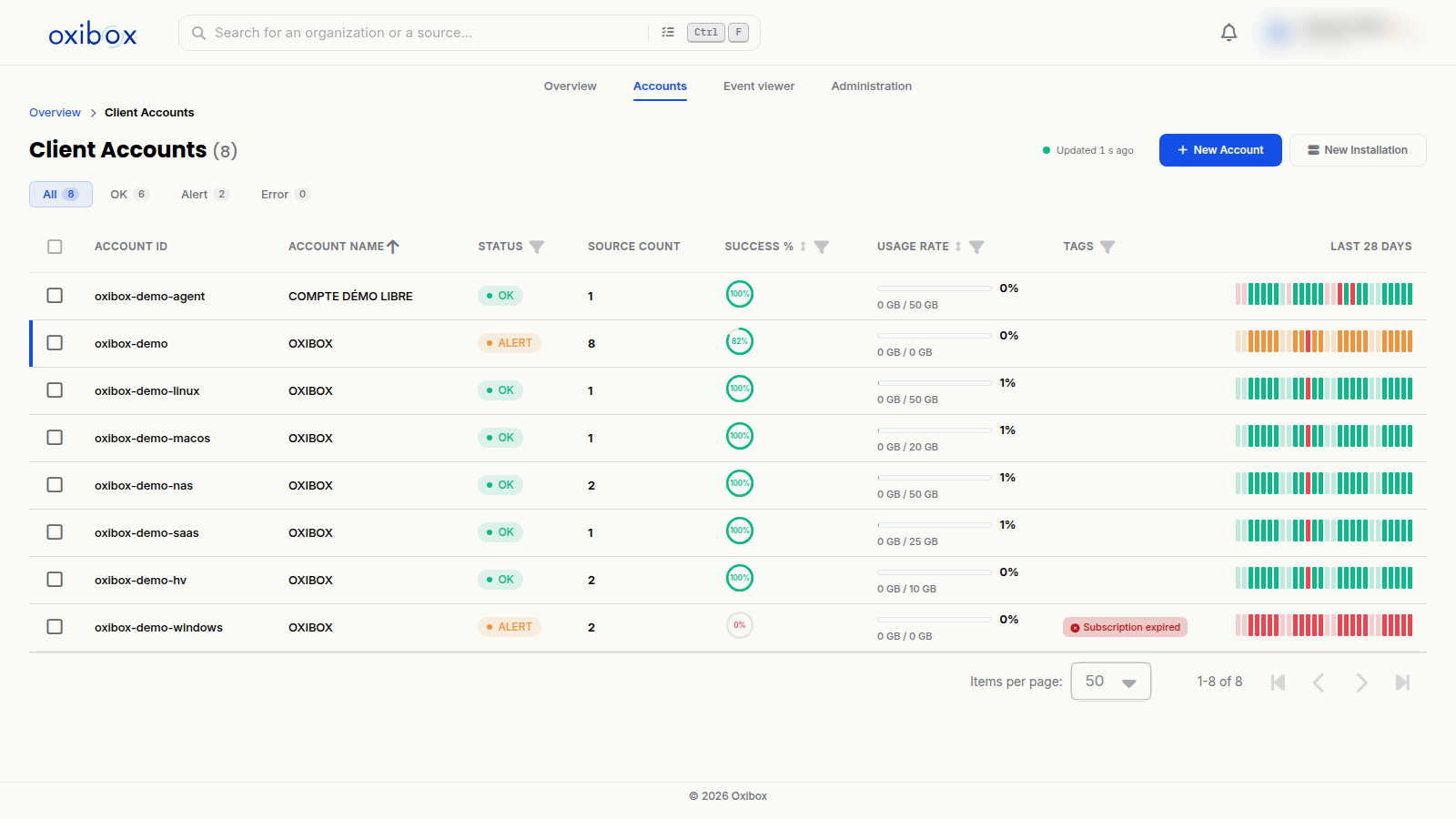
For each account, the table shows:
- its ID and name;
- its status (OK, alert or error), based on the result of the latest backups;
- the source count, that is, the number of machines or services backed up;
- the backup success percentage;
- the usage rate of its storage quota;
- its tags, for example “Subscription expired”;
- the history of the last 28 days.
The “All”, “OK”, “Alert” and “Error” tabs filter the list by status. The column headers let you sort and filter.
The history of the last 28 days
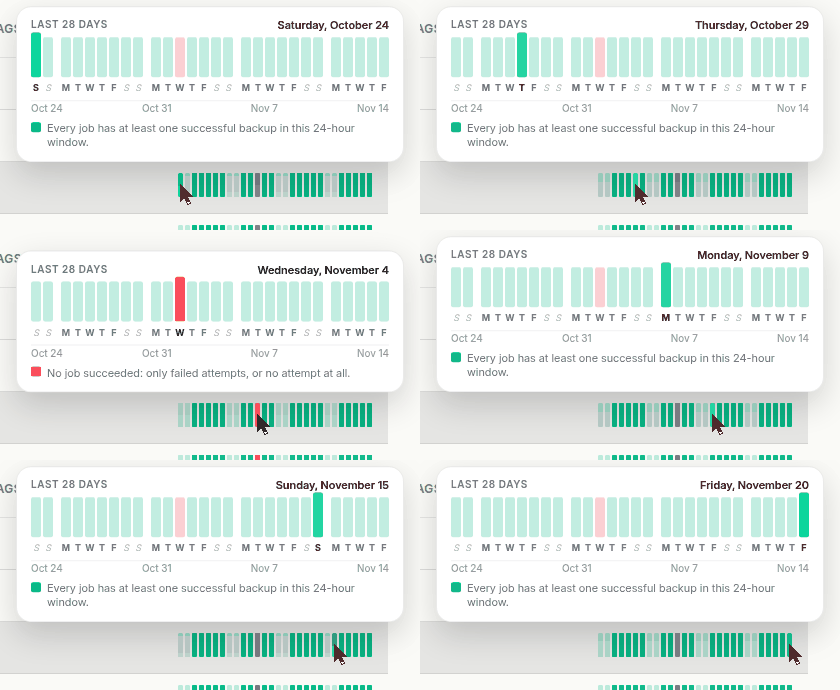
Each bar in the last column represents one day. Hover over it to see the detail for the period. The hovered day is highlighted, and the legend explains the result: for example, some jobs have at least one successful backup, while the others only have failed attempts or no attempt at all.
The account panel
The panel opens to the right of the list. Its header shows the account name, its type (for example “Partner”) and its ID. It is organised in seven tabs.
Summary
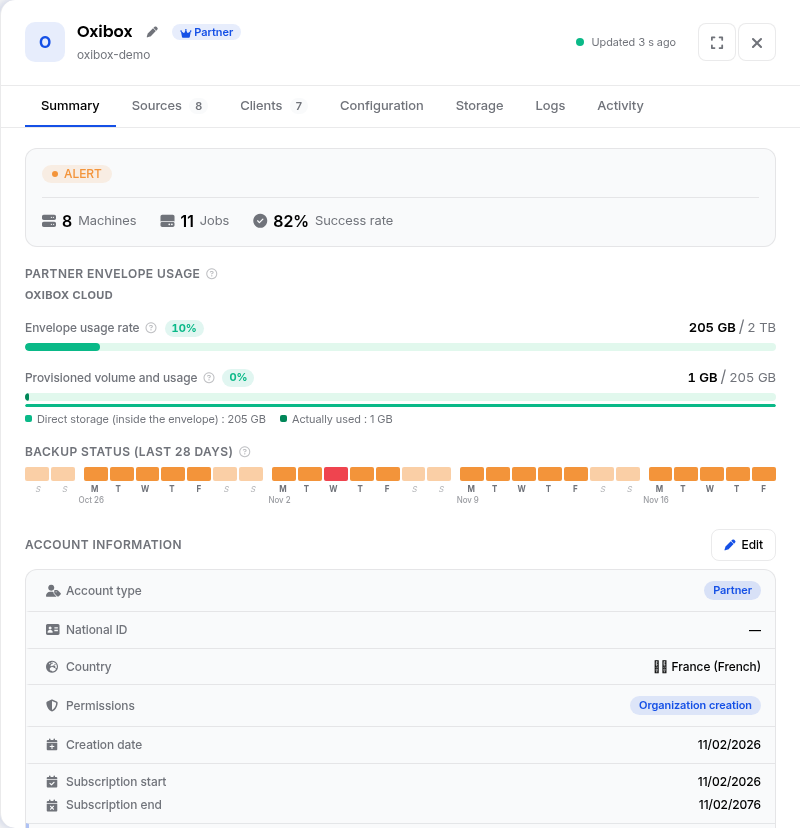
- The account status, its number of machines and jobs, and its success rate.
- For a partner account, the “Envelope usage rate” and the “Provisioned volume and usage” of the shared storage envelope.
- The backup status over the last 28 days, day by day.
- The “Account information”: “Account type”, “National ID”, “Country”, “Permissions”, “Creation date”, “Subscription start”, “Subscription end”, “Default RPO” and “Weekly closure”. The “Edit” button lets you update them.
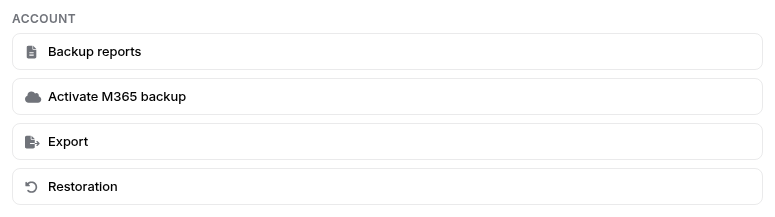
- The “Account” block, with management actions: “Backup reports” (backup reports sent by e-mail, daily, weekly or monthly), “Activate M365 backup”, “Export” and “Restoration” (access to the restore documentation).
Sources
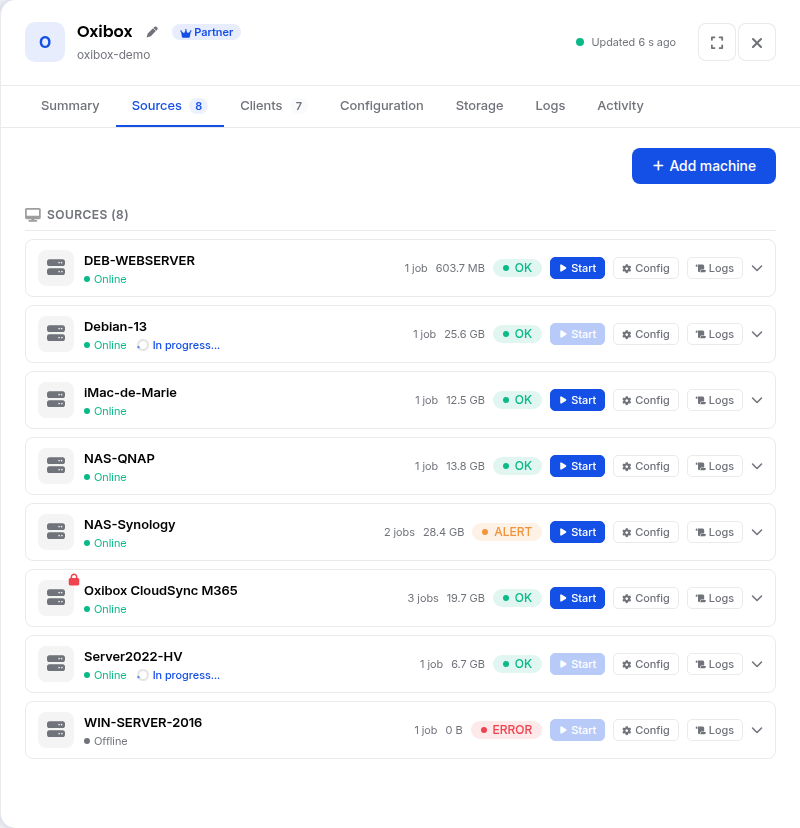
Each backed-up machine appears with its connection (online or offline), any backup in progress, its number of jobs, the volume backed up and its status. Three buttons are available:
- Start launches a backup immediately;
- Config opens the machine's configuration;
- Logs opens its logs.
The “Add machine” button shows the agent installers.
Clients
For a partner account, this tab lists its customers' accounts, with their status.
Configuration
Choose a machine to display its backup configuration.
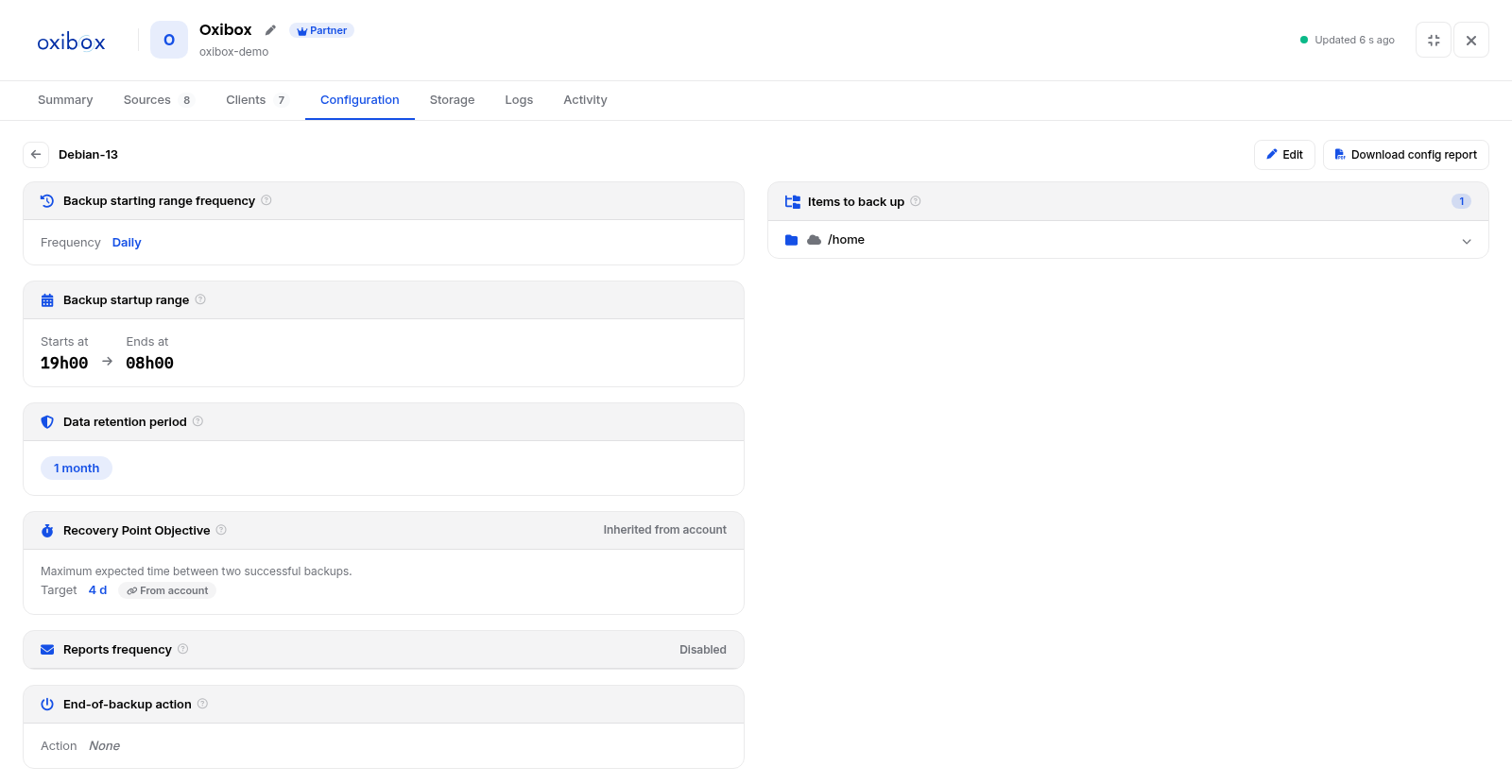
- Backup starting range frequency, for example every day.
- Backup startup range: start and end times.
- Data retention period.
- Recovery Point Objective (RPO): the maximum expected time between two successful backups. It can be inherited from the account.
- Reports frequency for the reports sent by e-mail.
- End-of-backup action.
- Items to back up: folders, volumes or virtual machines.
The “Edit” button lets you change these settings, and “Download config report” exports the machine's configuration. Each setting is described in detail in Configure the Oxibox backup agent.
Storage
The tab shows the account's “Capacity usage”, that is, its storage capacity usage and how it has evolved over the last week, month, year or a chosen interval. The “Change quota” button adjusts the allocated storage.
Logs
Choose a machine to view its backup logs.
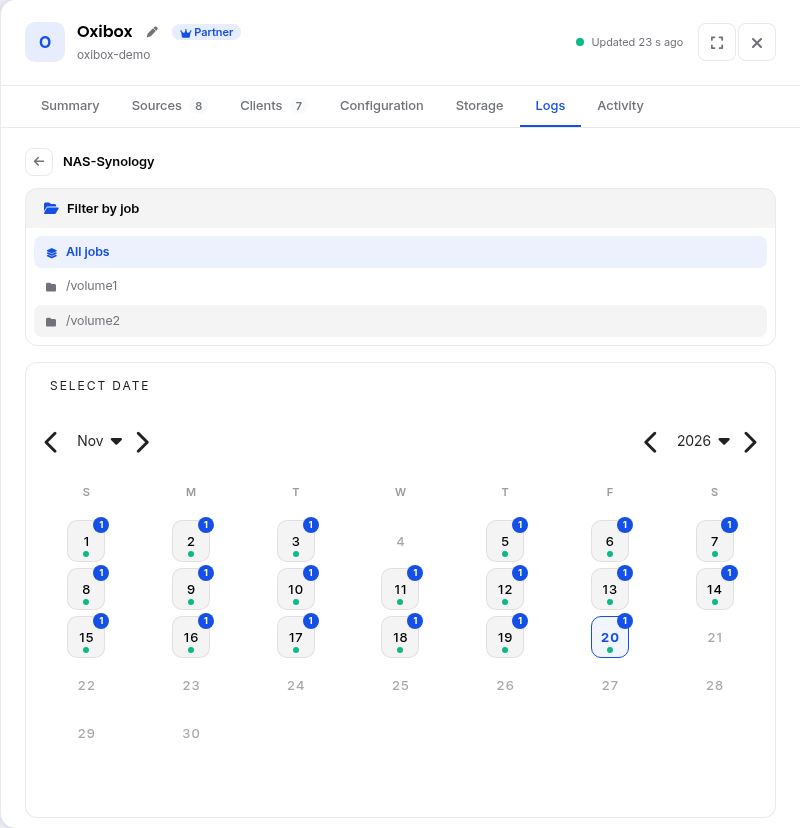
Filter by job, then choose a date in the calendar: each day shows the number of logs available. The detail of a log gives:
- the directory backed up, the backup status, the start and end dates, and the duration;
- the number of files on the source, the data size, the new and modified files, and the deduplicated volume added;
- the use of VSS, the transfer rates before and after deduplication, and the versions of the agent and of the backup engine.
Activity
The tab lists the account's recent events, for example logins, with their date, type and the device concerned. The full history, for all accounts, is available in the event viewer.